Finding your way around
The menu, the phone layout, Ask CLEO, and why a part of CLEO might be missing.
CLEO's menu is short on purpose, and it isn't the same for every business — it shows only the parts of CLEO you use. Once you know how it's put together, finding anything takes a second.
On a computer
The menu runs down the left, in this order:
- Ask CLEO, at the very top — with its shortcut beside it.
- Home — where the day starts.
- Customers — Pipeline, Leads, Clients and Top customers.
- Work — Overview, then one entry for each kind of work you deliver, then Archived.
- Requests
- Calendar
- Bookings
- Analytics
- Settings — Business Identity, Scheduling, Capabilities, Work Types, Team and CLEO usage.
Customers, Work and Settings are groups: press the name to open or close them. The group you're currently in is open already. A group with only one thing in it is shown as a plain link instead.
On a phone
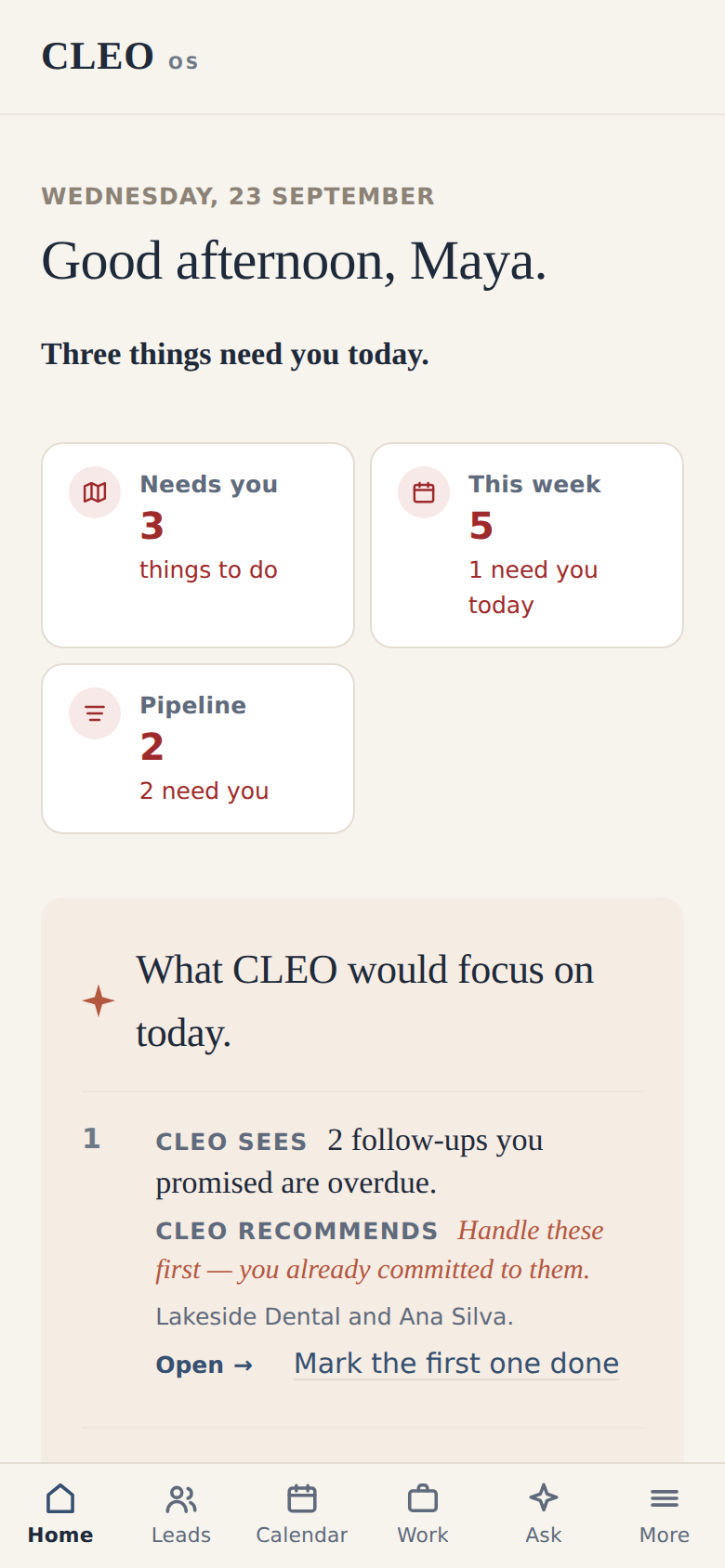
The menu moves to the bottom of the screen, where your thumb is. It holds four of the places you visit most, then Ask, then More.
The four are chosen in this order, from whatever your business has switched on: Home, Leads, Calendar, Work, Clients, Requests, Analytics. For most businesses that's Home · Leads · Calendar · Work · Ask · More. Switch the calendar off and Clients takes its place.
More opens the full menu — everything on the computer version, as a panel over the page. Nothing is missing on a phone; it's one tap further away.
Opening Ask CLEO from anywhere
- The Ask CLEO button at the top of the menu on a computer.
- Ask in the bar at the bottom of a phone.
- The keyboard: ⌘K on a Mac, Ctrl+K on Windows — from any screen.
It opens over whatever you're looking at, so you don't lose your place. What Ask CLEO is covers what it does.
Places that aren't in the menu
A few useful screens are reached from where you'd naturally need them, rather than from the menu:
| Screen | How you get there |
|---|---|
| Attention | From Home — the Needs you figure, "more need you", "more to answer", or the CLEO noticed line |
| Action items | From the Work page, or inside any piece of work |
| A decision you recorded | "What changed since" beside it, on the customer's record or in Attention |
| A customer's payments | From their record |
This is deliberate. Attention is a longer view of Home, not a separate place to visit, and it reads best when you arrive from the line that sent you. The Attention page explains it.
When something seems to be missing
Almost always, that part of CLEO is switched off for your business. Settings → Capabilities shows every part with its state.
- Off — press Turn on, and it's back in the menu with everything it held.
- Unavailable — it needs something else switched on first, and CLEO names what. Bookings, for example, needs the calendar.
If you follow an old link or bookmark to an area that's switched off, CLEO doesn't show you a broken page. It takes you to Capabilities and says is currently turned off. Nothing has been deleted — you can turn it back on here.
— or, when something it depends on is off, that it needs that to be turned on first.
That's also why two businesses' menus can look quite different. A business that doesn't take appointments may have no Calendar or Bookings at all, and nothing about the rest of CLEO changes.
Finding a particular thing
CLEO doesn't have a search box that looks across everything. What it has instead:
- Ask CLEO. Ask "where's the Henderson job?" or "what's happening with Marta?" and it answers from your records.
- Find this in CLEO. Under many answers, a line showing the path to the screen the answer came from, with a link straight to it. Follow it once and you'll know where to look next time.
- The lists themselves. Customers, Leads and Requests each have their own search and filters for that list.
That's the shape of CLEO. The quickest habit to build next is five minutes on Home each morning.