The calendar
Month, week and day views of everything with a date.
Calendar shows everything in CLEO that has a date: your appointments, and the dates you've committed to. It is a view, not a second place to keep dates. Each entry is read from the record it belongs to, so you change a date on that record and the calendar follows.
What's on it
Every entry carries a small label saying what kind of date it is:
| Label | What it is |
|---|---|
| Appointment | A time agreed with a customer, with its start and end |
| Follow-up | A lead you planned to get back to |
| Revisit | A lost opportunity you said to check back on |
| Promised | The date a request is due |
| Work | The next step on a piece of work, when it has a date |
| Task | An action item's due date |
Only appointments have a time of day. Everything else belongs to the date, because it is a deadline, not a block of your time.
Appointments stay on their day after they're over — completed, no-show or cancelled — so the calendar remains a true record of what was booked.
Three ways to read it
Choose Month, Week or Day at the top. The calendar opens on this month, with today selected.
- Month marks each day that has something on it. A filled mark needs a person; an open ring is simply happening. Choose a day to see its entries below the grid, or Open this day for the day on its own.
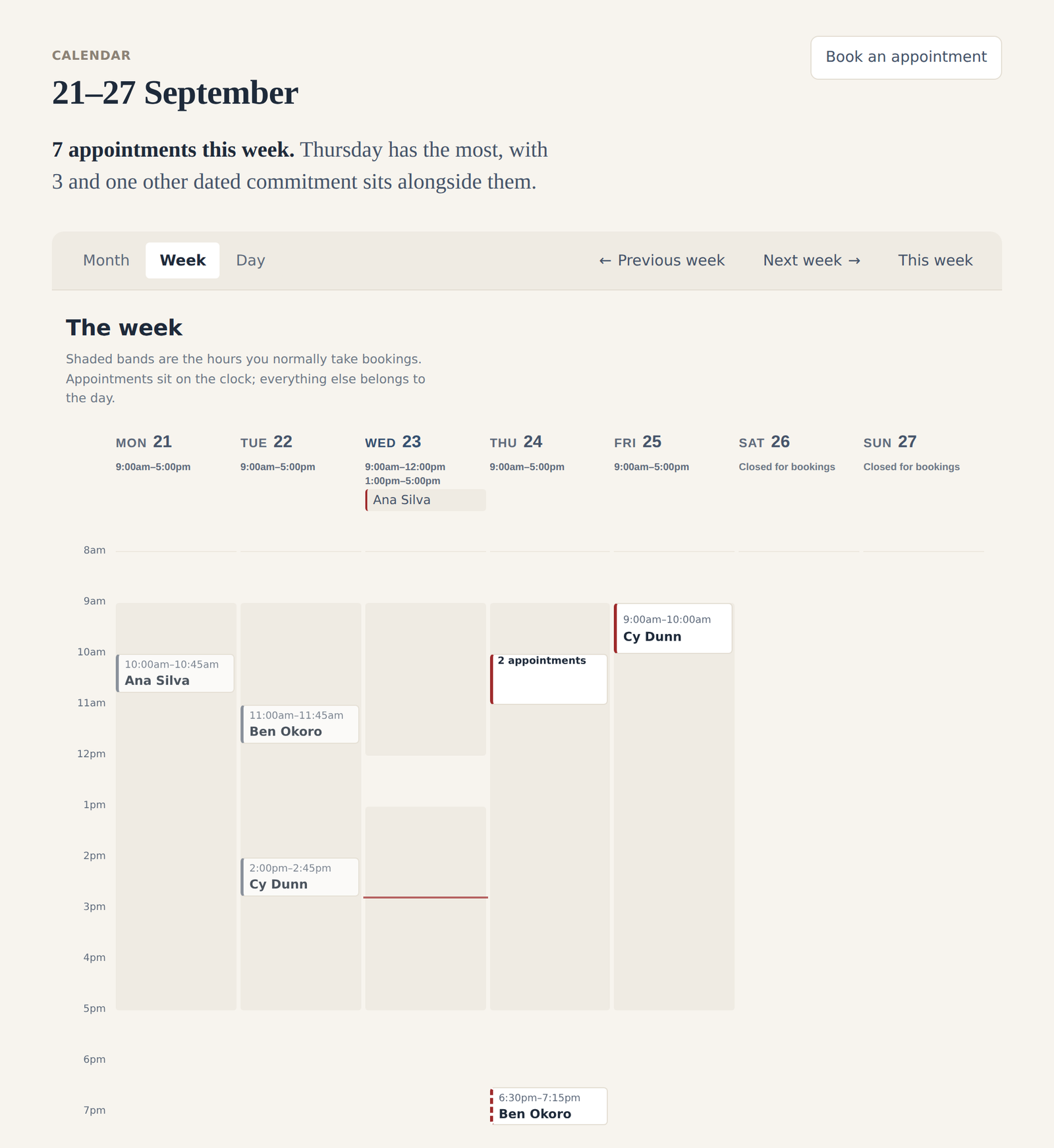
- Week lays appointments on a clock. The shaded bands are your booking hours:
Shaded bands are the hours you normally take bookings. Appointments sit on the clock; everything else belongs to the day.
Each day's hours are written in its heading — marked Special hours on a date you've changed, or Closed for bookings. Dates without a time sit at the top of their day. - Day lists one day's entries.
Move with the arrows beside the views. Today returns the month view to today, and This week does the same for the week; from a single day, Month takes you back to its month. The view and date you're looking at are part of the page address, so you can bookmark one. Opening Calendar from the menu always starts on this month.
Reading a day
A selected day splits in two. Needs you holds what is still open: appointments still to come, follow-ups, and dates not yet kept. Also on this day holds the rest: appointments that are over, and anything already finished. A day with nothing on it says Nothing is due on this day.
Below the calendar, Still outstanding lists anything from an earlier date that nobody has closed off. It stays on its own date too.
Opening something
Select an entry to open it where it's managed: an appointment opens its own page, a follow-up opens the customer, a promised date opens the request, a task opens its piece of work, and a work step opens Work. That's where you change it. Moving, cancelling and recording what happened all happen on the appointment's page, not on the calendar — Booking and moving appointments and Recording what happened cover them.
When Bookings is on, Book an appointment sits at the top of the calendar and opens the booking form on the date you're looking at. Selecting an empty day only selects it; nothing is created from the grid.
A gap is not free time
When CLEO does offer a time as free — on the booking form, or on your online booking page — it has worked that out from your hours, special dates, booking rules and existing appointments. When CLEO can offer free times explains how.
Calendar and Home
Home's The week reads the same entries as the calendar, for the next seven days, as marks. It is for seeing at a glance what is coming; each day opens the calendar on that date, where you read the entries themselves.
On a phone
Calendar is usually one of the tabs along the bottom. The month grid stays a grid; the week becomes a list of days, each with its hours and its appointments in order.
If Calendar is off
Calendar is on for every business to begin with, and Bookings needs it. If it has been turned off, an old link to it goes to Settings → Capabilities, which says Calendar is currently turned off. Nothing has been deleted — you can turn it back on here.